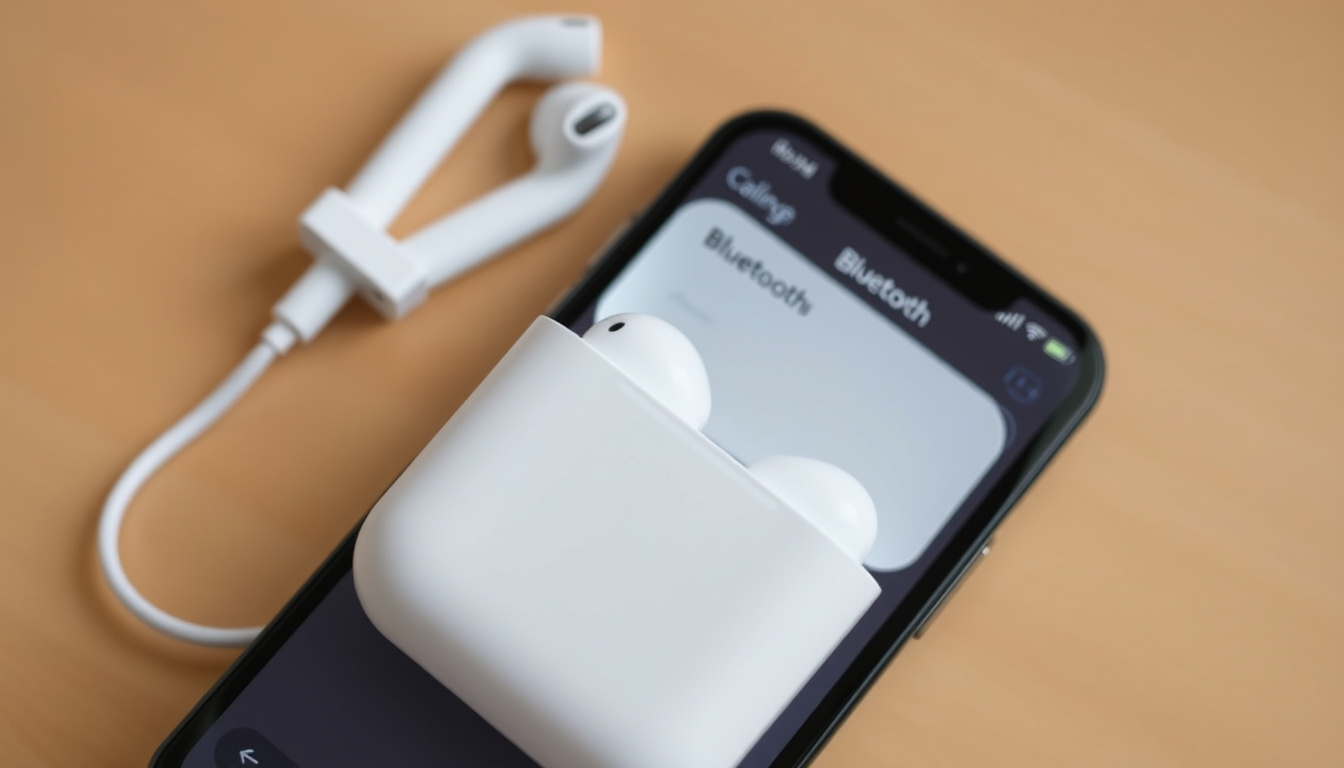
Resetting AirPods isn’t the same for every model. Apple has changed the process several times over the years, moving from a physical button on the charging case to a double‑tap gesture on newer models. Whether you own the original AirPods, the latest AirPods 4, or the over‑ear AirPods Max, the steps differ. This article walks through the correct method for each generation, explains what a reset actually does – and what it doesn’t – and addresses common situations like buying used AirPods or dealing with a missing button.
How to Reset AirPods (General Instructions for All Models)
Quick Reset Overview
- AirPods (1st, 2nd, 3rd gen), Pro, Pro 2 – Press and hold the setup button on the back of the case for 15 seconds until the light flashes amber then white.
- AirPods 4, AirPods Pro 3 (no button) – Place in case, close lid, wait 30 seconds, open lid, double‑tap the front of the case three times.
- AirPods Max – Press and hold both the noise control button and Digital Crown for 15 seconds until the LED flashes amber.
- Ownership transfer / previous owner – A local reset alone does not remove the device from the previous owner’s iCloud. The old owner must remove it from their Apple ID first.
Once reset, follow How to Connect AirPods to iPhone to reconnect.
Key Insights
- The reset method varies significantly between AirPods models: older models use a physical button on the back of the case, while AirPods 4 and AirPods Pro 3 rely on a double‑tap gesture on the front.
- A reset does not unpair the AirPods from iCloud; for ownership transfer, the previous owner must remove the device from their Apple ID.
- Resetting AirPods can resolve common issues like not connecting, audio imbalance, or charging problems.
- Resetting AirPods Max requires a different combination of hardware buttons – no case involvement.
Key Facts at a Glance
| Fact | Details |
|---|---|
| What a reset clears | All settings and connections, but does not remove the device from iCloud. |
| Successful reset indicator | Amber light then white flashing light (or amber then green for a standalone case). |
| Ownership transfer | Requires the previous owner to remove AirPods from their iCloud account. |
| AirPods Max restart vs reset | Restart (soft reset) does not lose pairing; a full reset uses the same button combination but wipes pairing. |
| First‑generation AirPods | Use the physical setup button on the charging case. |
| Buttonless models | AirPods 4 and AirPods Pro 3 have no physical button; use double‑tap method. |
| Reset duration | Button hold or double‑tap sequence takes about 15 seconds; reconnection takes another minute. |
| Firmware | Firmware remains intact after a reset – only pairing data and settings are cleared. |
How to Reset AirPods Pro, AirPods 4, and AirPods 3
AirPods Pro (1st and 2nd gen) and AirPods 3rd gen
For these models, Apple prescribes the same basic routine. Put the AirPods in the charging case and close the lid for about 30 seconds. On a paired iPhone or iPad, go to Settings > Bluetooth, tap the More Info button next to your AirPods, then tap Forget This Device and confirm. Open the lid and press and hold the setup button on the back of the case for about 15 seconds until the status light flashes amber, then white. Reconnect by following the on‑screen setup prompts. Apple Support confirms these steps.
On AirPods 3rd gen the button is located on the right side of the MagSafe charging case rather than the back. The procedure remains identical.
AirPods 4 (all models) and AirPods Pro 3
These newer models have no physical button. The reset sequence, documented by Apple’s official guide, requires a series of double‑taps on the front of the case. First, put the AirPods in the case, close the lid, and wait 30 seconds. If they appear in Bluetooth, forget the device first. Open the lid, then double‑tap the front of the case while the status light is on. Double‑tap again when the light flashes white, and a third time when it flashes faster. When the light flashes amber, then white, the reset is complete.
How to Reset AirPods with No Button (AirPods 4 Style)
The absence of a physical button on AirPods 4 and AirPods Pro 3 has led to a surge in searches for “how to reset AirPods no button.” The method described above – the triple double‑tap – is the only way to factory reset these models. Make sure the case has sufficient battery and the AirPods are inside. If the first attempt doesn’t produce the amber‑white flash, close the lid for 20 seconds and try again, as suggested by Apple.
How to Factory Reset AirPods Without Previous Owner (Ownership Transfer)
Understanding the limitation
If you’ve bought a used pair of AirPods that still show the previous owner’s name – often appearing as “Max” or another name on your device – a standard factory reset does not fully remove that link. Apple’s instructions for used AirPods begin by going to Bluetooth, tapping Forget This Device, then resetting the AirPods in the case. However, as noted by Avantree and Apple Support, this only clears local pairing data. The AirPods remain associated with the previous owner’s iCloud account and Find My network.
What you can do
The only way to fully transfer ownership is for the original owner to remove the AirPods from their Apple ID. If that’s not possible, Apple offers an activation lock removal process that requires proof of purchase. Without cooperation from the previous owner or a valid proof of purchase, there is no guaranteed workaround.
A local reset alone will not remove the previous owner’s name or iCloud lock. The AirPods will continue to appear linked to that account until it is properly disassociated.
How to Reset AirPods Name
Changing the name of your AirPods does not require a reset. On an iPhone or iPad, go to Settings > Bluetooth, tap the More Info button next to your AirPods, then tap the current name field. Type the new name and tap Done. This is purely a cosmetic change and does not affect pairing or reset the device.
How to Reset AirPods Max
AirPods Max follow a different procedure because they do not use a charging case for resetting. Charge the headphones for a few minutes first. Unpair them via Settings > Bluetooth by tapping Forget This Device. Then press and hold both the noise control button and the Digital Crown together for about 15 seconds until the LED flashes amber, then white. Apple Support confirms this method. Note that a restart (soft reset) uses the same button combination but does not erase pairing data – a full reset clears all connections.
Evolution of AirPods Reset Methods
- AirPods (1st gen) – 2016: Physical button on the back of the charging case. Press and hold 15 seconds.
- AirPods (2nd gen) – 2019: Same physical button. No change.
- AirPods Pro (1st gen) – 2019: Same physical button on the wireless charging case.
- AirPods Max – 2020: No case; button combination on the headphones themselves (noise control + Digital Crown).
- AirPods (3rd gen) – 2021: Physical button still present, but moves to right side of the MagSafe case.
- AirPods Pro (2nd gen) – 2022: Physical button on back of case (MagSafe).
- AirPods (4th gen) & AirPods Pro (3rd gen) – 2024/2025: No physical button. Double‑tap front of case three times after closing lid for 30 seconds.
What’s Certain and What’s Uncertain About Resetting AirPods
| Established information | Information that remains unclear |
|---|---|
| Apple’s official reset steps are definitive and work for each model. | If you cannot access the previous owner’s iCloud, there is no guaranteed way to factory reset AirPods without their cooperation – except through Apple’s activation lock removal process (requires proof of purchase). |
| Resetting erases all pairing data and returns the AirPods to factory state (except iCloud lock). | The exact LED behavior after a reset may vary slightly by firmware version. |
| The double‑tap method for AirPods 4 is confirmed by Apple guidance. | For AirPods Max, restart vs reset functions are sometimes confused; the button combination is the same but the outcome differs. |
Why Reset Methods Changed: The Shift to Buttonless AirPods
With the introduction of AirPods 4 and AirPods Pro 3, Apple removed the physical button from the charging case to achieve a seamless, waterproof design. This forced a new reset gesture (double‑tap) that many users find less intuitive. The change has increased search queries for “how to reset AirPods no button” and highlights the need for clear instructions. For older models, the physical button remains the standard, so users upgrading may need to unlearn the old method.
Official Sources and Expert Quotes
“Press and hold the setup button on the back of the case for about 15 seconds.”
Apple Support – How to reset your AirPods and AirPods Pro
“AirPods 4 or AirPods Pro 3: Put the AirPods in their case, close the lid, then wait 30 seconds. Open the lid, then double‑tap the front of the case three times.”
Apple Support – Restart, unpair, or reset your AirPods (AirPods 4 & Pro 3)
“Go to Settings, then Connected Devices, then hit the cog icon next to your AirPods or AirPods Pro.”
What to Do After Resetting Your AirPods
After a successful reset, reconnect your AirPods to your iPhone or other device by opening the case near the device and following the on‑screen setup. If you plan to sell or give away the AirPods, ensure they are removed from your Apple ID (Settings > [your name] > Find My > Devices). If the reset didn’t solve the issue, try a forced restart of your iPhone or check for firmware updates. For more on getting started, see How to Connect AirPods to iPhone.
Frequently Asked Questions
How long does it take to reset AirPods?
The reset process itself takes about 15 seconds (button hold) or the double‑tap sequence; after reset you may need to reconnect, which takes another minute.
Will resetting AirPods delete my firmware?
No, firmware remains intact. Only pairing and settings are cleared.
Can I reset AirPods without a case?
No, the reset process requires the charging case (or, for AirPods Max, the headphones themselves).
Why is my AirPods case light not flashing after reset?
Ensure the AirPods are inside the case and the case has sufficient battery. Try closing the lid and repeating the steps.
Will resetting AirPods unpair them from my iPhone?
Yes, a reset removes the pairing from your device. You will need to reconnect them afterward.
Do I need to forget the device before resetting?
Apple recommends forgetting the device first to avoid confusion during reconnection.
Can I reset AirPods using an Android phone?
Yes, the button‑based reset (older models) and double‑tap method (AirPods 4) work regardless of the device used for setup. However, you may need to use the Find My app on an Apple device to fully manage iCloud lock.
What if the reset keeps failing?
Put the AirPods in the case, close the lid for 20 seconds, then repeat the reset steps. Fully charging the case can also help.
Does resetting AirPods fix audio problems?
Often, yes. Resetting can resolve connectivity issues, audio imbalance, and charging glitches.
How do I know if my AirPods are fully reset?
The status light will flash amber, then white. After that, the AirPods will appear as a new device when you open the case near your iPhone.

Jack Thomas Clarke Thompson is a staff writer for PopCultureDaily.co.uk, covering entertainment news, film, television, streaming and celebrity culture. He works under Editor-in-Chief Harriet Winslow and Managing Editor Lucas Bennett, following the newsroom standards for sourcing, verification and fact-checking set out in our editorial policies.