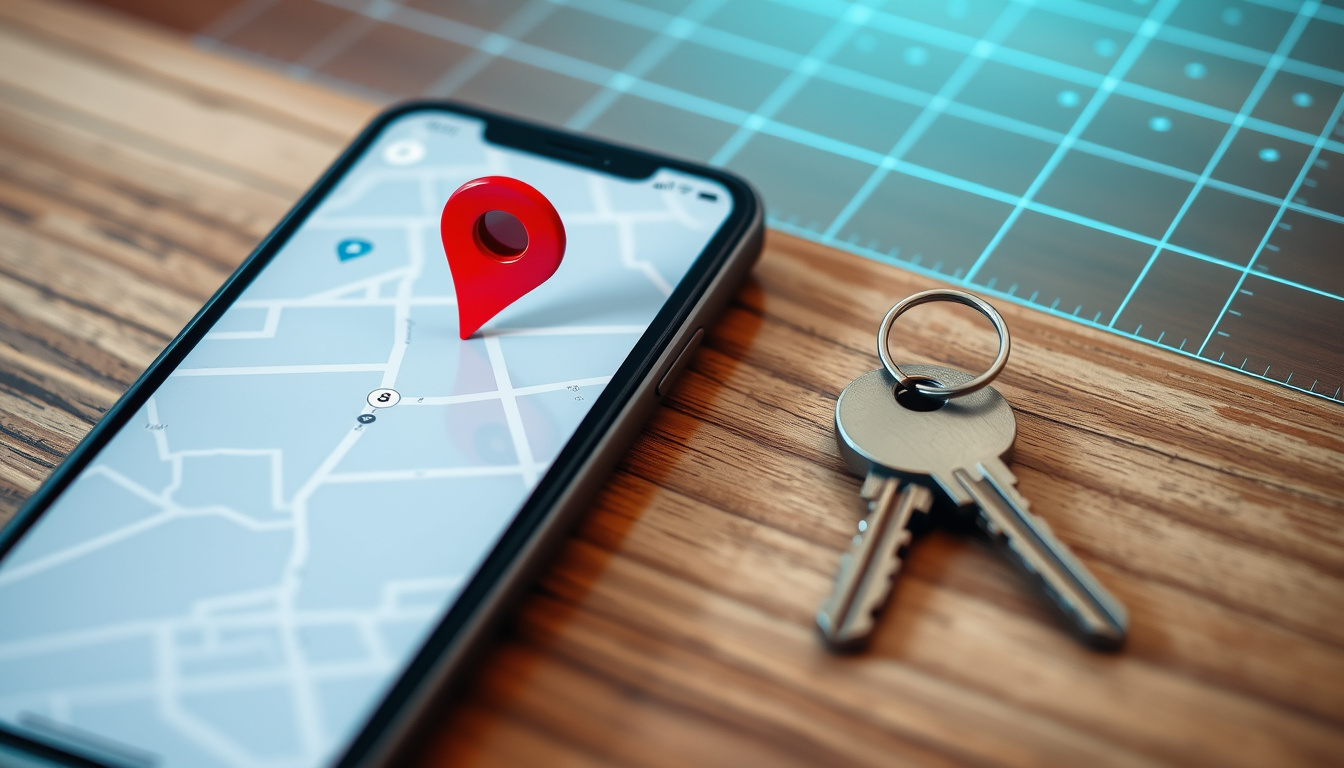

Losing a Samsung Galaxy phone can be a stressful experience. Samsung offers a free, built-in service called SmartThings Find—formerly known as Find My Mobile—designed to help you locate, lock, or even wipe your device remotely. This guide explains exactly how the system works, how to set it up, and what to do in different scenarios, from a phone left in a taxi to a stolen device.
Samsung’s finding tool has evolved significantly over the years. It now supports not only phones but also tablets, smartwatches, Galaxy Buds, and SmartTags. The service is accessible through a dedicated website or the SmartThings app, making it a central hub for locating your Samsung ecosystem.
The core of the system relies on your Samsung account. Without a signed-in account and the correct settings enabled, the service cannot function. Understanding the requirements and limitations is the first step to ensuring you can find your phone when it matters most.
How to Set Up and Use Samsung Find My Phone (SmartThings Find)
Before a phone goes missing, a few minutes of preparation can make all the difference. Here are the key points to understand about Samsung’s finding service:
- Samsung’s SmartThings Find is now the primary tool for locating lost devices, replacing the older Find My Mobile app. It uses both GPS and Bluetooth crowdsourcing for offline finding.
- Offline finding works only if other Samsung devices are nearby (with Bluetooth on) and the lost device has recent Bluetooth data. It is not a real-time GPS tracker when offline.
- For stolen phones, Samsung offers remote locking and factory reset, but unlocking via Find My Mobile requires prior setup (Samsung account and remote unlock enabled).
- Google Find My Device can be used as a backup on Samsung phones, but it lacks offline network finding and some Samsung-specific remote actions.
| Fact | Detail |
|---|---|
| Service | SmartThings Find (replacing Find My Mobile) |
| Activation | Settings > Security and privacy > Find My Mobile > On |
| Website | smartthingsfind.samsung.com (no app needed for web access) |
| Offline Range | Up to ~100m via Bluetooth (crowdsourced nodes) |
| Remote Unlock | Only if ‘Remote unlock’ option enabled in settings |
| Data Backup | Can back up data to Samsung Cloud before wiping |
Step-by-Step Setup: Find My Mobile on Your Samsung Galaxy
Setting up the service is straightforward. Samsung’s instructions direct users to navigate to Settings, then Security and privacy, and finally Lost device protection. From here, you must enable three key toggles: Allow this phone to be found, Send last location, and Offline finding.
According to Samsung’s support pages, these options may be turned on by default when you add a Samsung account. However, they recommend verifying the settings manually to ensure everything is active. This simple check can prevent a failed location attempt later.
Using SmartThings Find Website to Locate Your Device
If your phone goes missing, you can use any other device with a web browser. Go to the SmartThings Find official website and sign in with your Samsung account. The site will display a list of your registered devices. Selecting a device shows its last known location on a map. For live tracking, you can select Track location and then Start to receive real-time updates.
Free vs Premium: What’s Included in Samsung Find My Phone?
The core SmartThings Find service is completely free. There are no subscription fees for locating, ringing, locking, or erasing your device. The only requirement is a Samsung account, which is also free to create. The service is included with the purchase of any compatible Galaxy device. There is no premium tier for additional features, though some functions like data backup to Samsung Cloud may have separate storage limits.
Can You Find a Samsung Phone That’s Offline or Turned Off?
This is one of the most common questions and the answer depends on the device’s state. Samsung’s support materials explain that the service can help locate a device even without Wi-Fi or cellular data, but only if the phone is turned on.
Offline Finding via Bluetooth and Nearby Devices (SmartThings Find Node)
Samsung’s offline finding works through a crowdsourced network. When your device is not connected to the internet, it can still emit a Bluetooth signal. Other nearby Galaxy devices that have opted into the SmartThings Find network can detect this signal. These other devices act as Find Nodes and relay the location information to Samsung’s servers. This allows you to see an approximate location on the map, even though your device has no data connection of its own.
The location of an offline phone is not GPS-accurate. It is estimated based on the position of the Samsung device that detected it. The range of Bluetooth Low Energy (BLE) is approximately 100 meters, so the reported location is within that radius.
What Happens When the Phone Is Completely Turned Off?
If your Samsung phone is completely powered off, it cannot send a signal or be detected. In this scenario, Samsung confirms that you will only see the last known location, which was uploaded before the battery died or the device was turned off. The Send last location setting is designed for this—it automatically uploads a final GPS fix when the battery becomes critically low.
Samsung Offline Location Limitations and Battery Saving Tips
The accuracy of offline finding is not guaranteed to pinpoint your phone’s exact location. The reliability depends on the density of other Galaxy devices in the area. In a crowded city, there may be many potential nodes, leading to a better estimate. In a rural area, the network may be sparse. For battery saving, the offline finding feature is designed to have a minimal impact on battery life, as it uses low-energy Bluetooth broadcasts.
How to Find and Secure a Stolen Samsung Phone
If you believe your phone has been stolen, acting quickly is essential. Samsung provides a clear set of steps to follow, prioritizing data security.
Immediate Steps to Take When Your Samsung Phone Is Stolen
The first action should be to visit the SmartThings Find website from another device. Log in to your Samsung account and select your missing phone. Use the Track location feature to see if the device is moving. This information can be critical if you decide to involve the authorities.
If the location shows an unfamiliar address or the device is moving, do not try to confront the person in possession of it. Samsung’s support guidance advises informing the authorities and letting them retrieve the device if possible.
Remotely Lock Your Device and Display a Custom Message
As a second step, you can lock the phone remotely. On the SmartThings Find website, select your device and choose Lock. You will be prompted to create a PIN. Optionally, you can add an emergency contact number and a message that will appear on the lock screen. Samsung states the device will remain locked until you enter the PIN you created.
Factory Reset and Data Wipe Using SmartThings Find
If you have given up hope of recovering the device, the last-resort option is to erase all data. On the website, select Erase data. You may need to re-verify your Samsung account. After confirming, the phone will perform a factory reset the next time it connects to a network. Samsung warns that this action makes location tracking less useful afterward, as the device will be wiped of your account information.
Reporting to Authorities and Carrier – What You Need to Know
Samsung’s guidance recommends contacting your mobile carrier to report the phone as stolen. The carrier can block the phone’s IMEI number, preventing it from being used on most cellular networks. You should also provide the police with any location data you have gathered from SmartThings Find. The Samsung support page for Latin America specifically advises letting the authorities retrieve it.
How to Unlock Your Samsung Phone Using Find My Mobile
This feature is designed for situations where you have forgotten your PIN, password, or pattern, not for unlocking a stolen phone. Samsung’s support content and a related video guide confirm that remote unlock is available as a function, but it depends on specific preconditions.
Unlocking When You Forget Your Password or Pattern
If you are locked out of your own phone, you can use the SmartThings Find website. Log in to your Samsung account and select the locked device. Among the options, you should see an Unlock button. Clicking it will send a command to the phone to unlock itself. According to Samsung, this requires the device to have a network connection and for the Remote unlock option to be enabled in the phone’s security settings beforehand. Samsung UK’s SmartThings Find page lists this among the service’s capabilities.
For security reasons, the remote unlock feature may not work if the device is not connected to the internet. This prevents an unauthorized person from using the feature, as they would have no way to trigger the process without a connection.
Will Unlocking via Find My Mobile Wipe Your Data?
Based on Samsung’s official instructions, unlocking your phone remotely does not erase your data. The process is designed to bypass the lock screen while preserving all your files, apps, and settings. This is separate from the Erase data function, which is a destructive action. However, the exact behavior can depend on the device model and the software version (One UI version) it is running.
Alternative Methods: Samsung Account Unlock vs SmartThings Find
The Samsung Community Forum has noted that the “Find My Mobile” service has been integrated directly into SmartThings Find. This means the unlock functionality is now accessed through the same SmartThings Find website or app. There is no separate “Samsung Account Unlock” portal; the SmartThings Find interface is the central hub for all remote commands.
Samsung Find My Phone vs Google Find My Device: Which Should You Use?
Samsung phones come with two different finding services: Samsung’s own SmartThings Find and Google’s Find My Device. Both are free and can be used simultaneously. The choice depends on your needs.
Feature Comparison: Location Accuracy, Remote Locking, Data Wipe
Google Find My Device offers similar core functionality: you can locate, ring, lock, and erase an Android device. It is automatically turned on when you add a Google Account to your phone. However, as of 2025, Samsung’s service has a significant advantage in offline finding. While Google is building its own Find My Device network with Bluetooth crowdsourcing, Samsung’s SmartThings Find already has a wide network of nodes, particularly in areas with many Galaxy users. For a comparison of different tracking tools, you might be interested in our guide on How to Use a Flight Tracker – Complete Beginner’s Guide.
When to Use Samsung’s SmartThings Find Over Google’s Service
For a pure Samsung ecosystem, SmartThings Find is the more robust option. It supports a wider range of Samsung products, including watches and Buds. If you need the best chance of finding an offline phone today, Samsung’s network is the one to rely on. Google’s service, which is accessed via the Google Find My Device Help page, is a solid backup, especially for non-Samsung Android devices.
Can You Use Both Services Simultaneously?
Yes, you can. There is no conflict between the two services. Having both enabled provides a safety net. If one service has a temporary issue or if you are in an area where one network is stronger, the other may still work. It is a recommended best practice for anyone who wants maximum protection for their device.
Troubleshooting: Why Can’t I Find My Samsung Phone?
There are several common reasons why a phone might not appear on the SmartThings Find map. Most are related to settings or the phone’s state.
Common Reasons: Location Permission, Battery Saving, Account Issues
If the phone is powered off, only the last known location will be available. If it is on but not appearing, the most likely cause is that the device is not signed into a Samsung account or that the Remote controls setting is disabled. Aggressive battery saving modes can also prevent the phone from polling for location updates or responding to remote commands.
How to Check if Find My Mobile Is Enabled
To verify, you need physical access to the phone. Go to Settings > Security and privacy > Lost device protection. Ensure that the three main toggles (Allow this phone to be found, Send last location, Offline finding) are all switched on. If you cannot access the phone, you can check your Samsung account online to see which devices are listed, but you cannot change settings remotely.
Forcing Location Update When the Phone Is Nearby
If you believe the phone is nearby but it isn’t showing up, try using the Ring function from the SmartThings Find website. This will force the phone to play a sound at maximum volume, even if it is on silent. If the phone connects to the network to receive this command, it may also refresh its location.
Timeline of Samsung’s Finding Service
- – Samsung launches Find My Mobile for Galaxy devices.
- – SmartThings Find is introduced as a separate service.
- – Integration of Find My Mobile into SmartThings Find app.
- – SmartThings Find web portal launched at smartthingsfind.samsung.com.
- – Offline finding expanded with Bluetooth node network; Google Find My Device network also integrates Samsung devices.
What We Know for Sure and What Remains Unclear
| Established Information | Information That Remains Unclear |
|---|---|
| SmartThings Find is the current official tool for locating Samsung phones. | Exact location of an offline phone can be inaccurate (within ~100m radius). |
| Offline finding uses Bluetooth and nearby Samsung devices to approximate location. | If the phone is turned off completely, it cannot be located using SmartThings Find; only the last known location may be visible. |
| Remote lock, backup, and erase are available via the web portal. | The availability of certain features (like remote unlock) depends on device model and software version (One UI version). |
| Unlocking via Find My Mobile may not work if the device is not connected to the internet at all. |
Understanding the Shift to SmartThings Find
Samsung’s Find My Phone ecosystem has evolved from a simple GPS tracker to a multi-layered system leveraging Bluetooth crowdsourcing. This shift aligns with Google’s similar rollout of the Find My Device network, emphasizing offline location capabilities. The integration with SmartThings Find allows a unified experience across Samsung devices (phones, tablets, watches, buds), creating a competitive edge over other ecosystem-specific finders. For end users, the most critical takeaway is that offline finding is not a real-time GPS solution; understanding its limitations prevents false expectations, especially in stolen phone scenarios.
What Samsung and Other Sources Say
“With SmartThings Find, you can locate your Galaxy phone, tablet, watch, and other devices even if they are offline.”
— Samsung Support Page
“You can find, lock, or erase a lost Android device. If you’ve added a Google Account to your device, Find My Device is automatically turned on.”
— Google Find My Device Help
“Find My Mobile has been integrated into SmartThings Find. Both services use the same Samsung account and backend.”
— Samsung Community Forum (Official)
Summary: How to Prepare for a Lost Samsung Phone
The most effective way to protect your data and improve the chances of recovery is to prepare your phone now. Ensure your Samsung account is active and that the Lost device protection settings are enabled. This includes allowing the phone to be found, sending the last location, and turning on offline finding. For related information on managing your personal documents, see our guide on UK Driving Licence Rules 2025 – Renewal, Validity & Categories.
Frequently Asked Questions
What is the difference between Find My Mobile and SmartThings Find?
Find My Mobile was the original name. Samsung has now integrated it into the SmartThings Find app and website. All features are the same; the name change reflects the broader device support.
Can I find my Samsung phone if it’s switched off?
No. If the phone is completely off, it cannot send its location. SmartThings Find will show its last known location if available.
Does Samsung Find My Phone work in the UK?
Yes, SmartThings Find is available worldwide including the UK. Visit smartthingsfind.samsung.com from any browser.
What should I do if my Samsung phone is stolen?
Immediately go to smartthingsfind.samsung.com, log in with your Samsung account, and lock or erase the device. Also contact your carrier and local police.
Is there a Samsung Find My app for iPhone?
No, there is no iPhone app for SmartThings Find. However, you can use the website from an iPhone browser.

Jack Thomas Clarke Thompson is a staff writer for PopCultureDaily.co.uk, covering entertainment news, film, television, streaming and celebrity culture. He works under Editor-in-Chief Harriet Winslow and Managing Editor Lucas Bennett, following the newsroom standards for sourcing, verification and fact-checking set out in our editorial policies.